The idea seems delusional to reconcile the irreconcilable only until such time as you do not need any specific application which is not present on the Mac, or as long as do not want to hack to death in a fresh game hit.
Even the most ardent fans of OS X knows it is sometimes necessary to use the “enemy» Windows. The situations are different: from the need to use banking clients and corporate software to running games. There are many ways to run applications written for Windows OS, using a third-party tool, and Apple proprietary solutions. In this article, I’ll be telling you the 7 ways to run Windows applications and games on Mac without breaking the device or the bank.
They can be divided into three categories: high-grade Installation of Windows, the use of virtual machines and emulators Windows programming environment. Each method has its advantages and disadvantages, so we consider them all, so you can choose the most convenient for you.
Install Windows using Boot Camp
Especially for the unfortunates who can not break all ties with Windows, Apple has created a tool « the Boot Camp Assistant “, with which you can prepare your Mac to install Windows and actually install it. This creates a separate partition that allows the operating system to work both independently of each other on the disk.
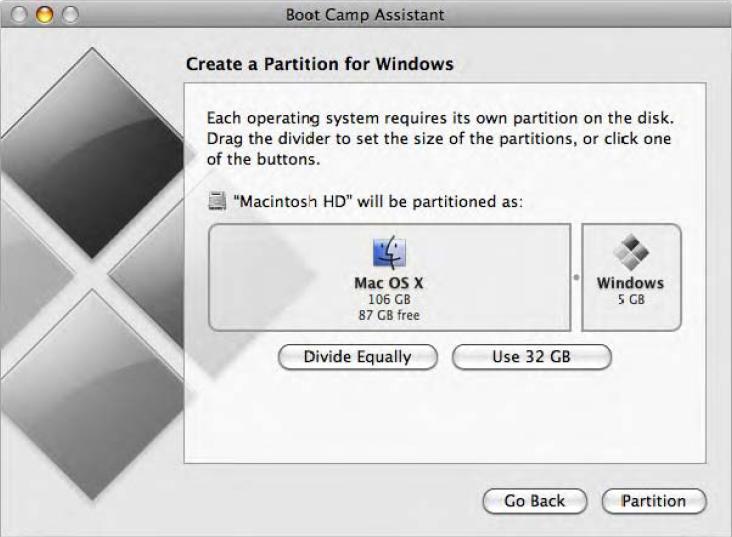
You will need 50 GB of free space and a Windows boot disk. The installation process is very simple, just need to follow the wizard and wait for the completion.After the reboot, you will get at their disposal a full version of Windows as a normal PC. Will install the necessary applications or games – and you can use it.Learn more about the requirements and supported versions here .
- Performance. Since all the resources of the Mac OS uses only one, we get the maximum performance.
- Compatibility. Thanks to a full to the fact that Windows provides full compatibility with all applications and games.
- Restart. To start Windows every time you will have to restart the Mac.
- Lack of integration. Windows does not support HFS + file system, and therefore, you can not have access to OS X files from Windows, as well as vice versa.
Use of VMs
This method has many similarities with the previous one, but the implementation is slightly different. With it, we also get a full-fledged OS, but it does not set a real “machine”, but virtual. Special software (virtual machine) emulates a hardware platform to run the Windows, Mac selecting part of the resources, and it turns out that one operating system running inside the other.
There are a number of virtual machines, both paid and free. According to the principle of the work they are similar, but the differences are insignificant and more are in functionality. Windows installs from a bootable disk image or physical media device. Select the number of resources that you are willing to share with the guest operating system (CPU, memory, disk space), and then install Windows as usual, and the desired application and use in windowed or full screen mode at any time by switching between OS X and Windows.
Parallels Desktop
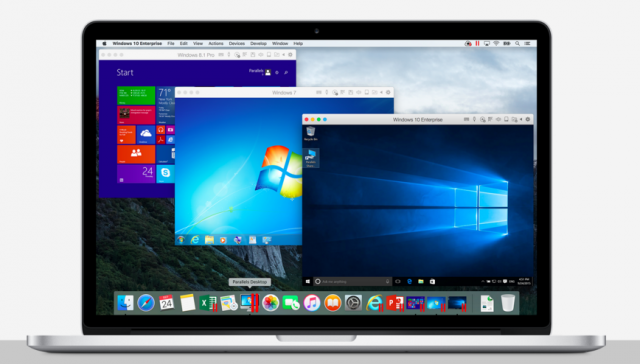
Perhaps the most popular among the “Macintosh” virtual machines. The Parallels updated regularly, always works with current versions of OS X and Windows, and has additional features like a hybrid mode when the screen simultaneously displays the interfaces OS X and Windows, and applications run regardless of their affiliation . In addition, the program is able to run Windows section of Boot Camp, which is convenient if you want access to any application or data without rebooting.
The drawback of the program is that Parallels is not free. The starter version will cost you 79.99 dollars.
VMware Fusion
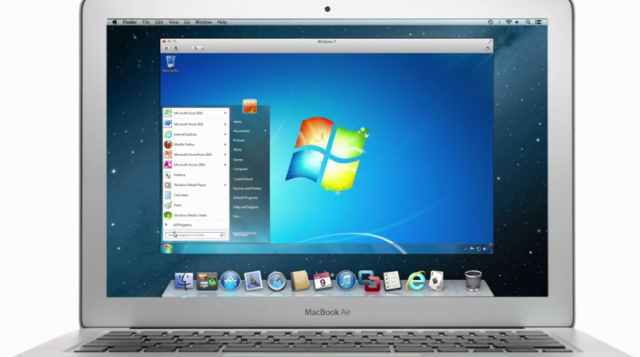
Another commercial solution for operating system virtualization. Chip key VMware Fusion is the exchange wizard to migrate entire environment from your Windows-based PCs into a virtual machine, and continue to use the applications already on the Mac. Installed Windows is shared with the OS X clipboard, as well as access to files and network resources. Its applications are fully integrated with the functions of OS X (Spotlight, Mission Control, Exposé). In addition, supported by the launch of Windows partition Boot Camp.
VMware Fusion is not free, but before you buy you can explore its possibilities for a free trial.
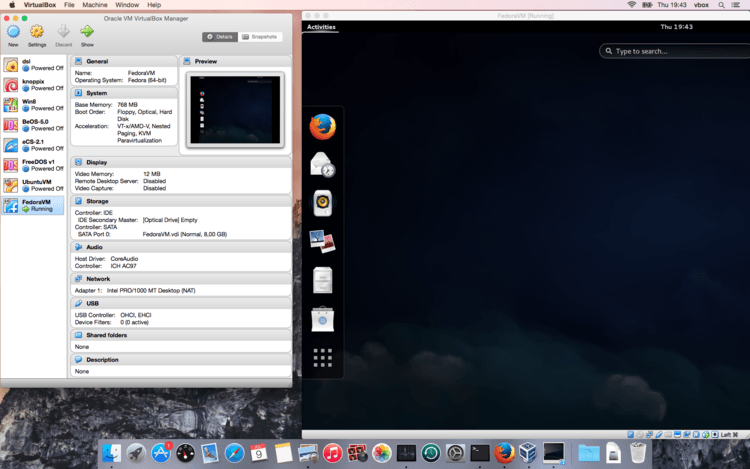
If your plans do not include additional expenses to run Windows-based applications, your choice – the VirtualBox from Oracle. Compared with pay counterparts it has much less capacity, but is good enough for simple tasks. On integration with OS X system functions should not count, but basic things like a general exchange of and access to network resources are available to buffer. Free VirtualBox fully justifies all its limitations.
- Simultaneous operation of the two operating systems. To run Windows-based applications do not need to restart the Mac.
- File Sharing. Because Windows is running in OS X, the problem with support for file systems available.
- Poor performance. Due to the fact that Mac resources are divided between the two operating systems, application performance considerably lower, especially when using an old PC with lesser resources.
- Compatibility issues. Some applications (mostly games) that require direct access to the windows may not work properly or not work at all.
Using the emulators
With emulators everything quite differently than with virtual machines and Boot Camp. Rather, they have something in common with the virtual machines, but they do not emulate Windows entirely, but only those of its software components that are required for the desired application. Full-fledged operating system, and access to its functions, we will not we get a compatibility layer that allows you to run Windows-based application directly in the medium OS X.
All emulators running on the same basis. Initializes the application via setup.exe, and then in the course of its required parameters are set automatically start and load the necessary libraries. After that appears on Launchpad icon of the application that will work as well as all the native software OS X.
WineBottler
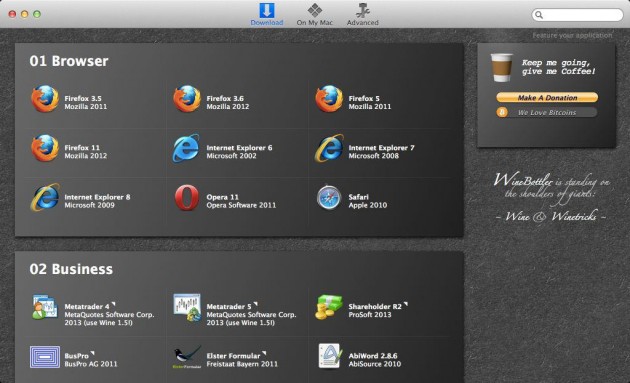
This emulator can convert .EXE-file in compatible with OS X application. Also WineBottler can automatically download some already configured Windows-based applications. It is completely free and is compatible with OS X.
Wineskin
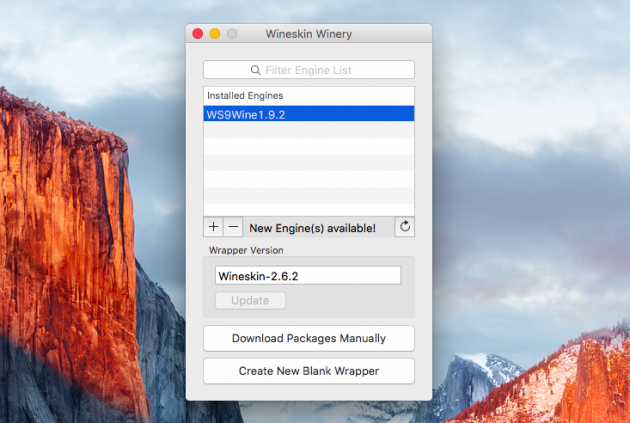
Another emulator, which, like the previous one, uses the Wine libraries to create ports. Compared with the previous solution, Wineskin has more options and allows you to more finely set the parameters.
CrossOver
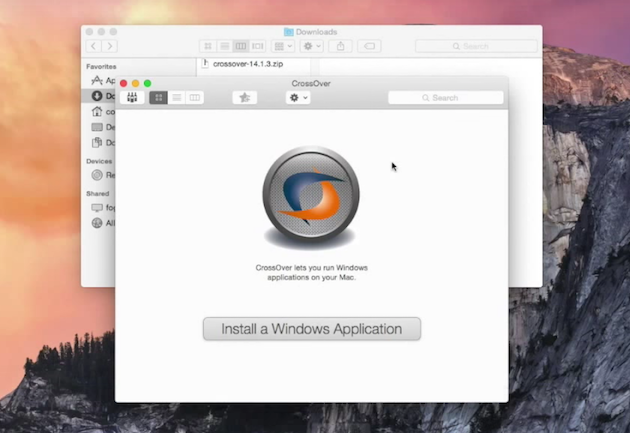
Commercial emulator, which the development team has adapted and tuned for you to many popular Windows-based applications and games. The CrossOver has a friendly interface and eliminates the need to dig into the settings and deal with possible errors. The only negative – it is paid. The license costs 20.95 dollars, but there is a 14-day trial period.
- I do not need a license Windows. Emulators run applications through a compatibility layer, so a licensed copy of the operating system is not necessary.
- Performance. Again, due to the saving of resources that are spent in the virtual machines to run the Windows full, we get a better performance in comparison with them.
- Difficulty settings. To use the Windows-based applications they first need to set up, and it’s not always easy, especially with games.
- Compatibility issues. In some cases, the application (more resource-intensive) may not work properly or not work at all.
What to choose
As a result of such a variety to choose from? The unequivocal answer to this question is no. In each case, you need to make a start on your needs, but in general the following recommendations.
- Boot Camp is suitable primarily for gamers and users who want maximum performance and compatibility with the software. Reboot the Mac – and get a full-fledged computer with Windows.
- Virtual machines help out in cases where the need both operating systems simultaneously. We are sacrificing performance, but avoid reboots and get a good integration.
- Emulators can be recommended only for simple tasks, and infrequent use.For example, when a couple of times per month you need to use bank-client or occasionally play your favorite game.
Choose for yourself the best option, and in the comments tell me, for what purpose you use Windows-based applications on your Mac, and how they run.
Leave a Reply
You must be logged in to post a comment.